How to Convert Any Bank Statement PDF to Excel or CSV (2026 Guide)
March 24, 2026 · 6 min read
Closing your books at the end of the month? Preparing for tax season? At some point, you need to turn bank statements into something you can actually work with.
You download your bank statement, usually as a PDF, then realize there is no straightforward way to convert the transactions into a spreadsheet or any format you need.
This is a common situation when reconciling accounts, building financial reports, or importing transactions into accounting software.
This guide walks through your options, starting with the simplest and most reliable, and where each one falls short.
1. Export Directly from Your Bank
Before trying anything else, check if your bank already supports exporting transactions.
Look for options like "Export", "Download transactions", or "Download as CSV/Excel" in your online banking or mobile app.
If this is available, use it. It is the most reliable option since the data comes directly from the bank's system.
Although historical bank statements are often only available as PDFs, you may be able to request data in specific formats through customer support. For corporate accounts, you may try requesting this through your account manager. Even when export options are available, the file format may be correct, but the structure can differ from what you expect, so some cleanup or adjustment may be required.
2. Manual Copy-Paste
The simplest approach is to open the PDF, copy the transaction table, and paste it into a spreadsheet tool like Excel or Google Sheets.
On well-structured PDFs, this can work, with about 10 to 15 minutes of cleanup per page (fixing columns, dates, and formatting).
However, this depends heavily on how the PDF is structured. In many cases, the extracted data is messy.
Text may be split into fragments, spacing can be inconsistent, and columns may not align correctly, making the transactions difficult to copy-paste directly into a spreadsheet. Font encoding issues can also cause characters to render incorrectly or be substituted during copying.
Some files are secured or read-only, which can limit or block text selection entirely. Some bank statements are image-based PDFs, which cannot be copied without advanced text or image recognition tools.
Watermarks may interfere with extraction, and character errors such as "0" and "O" or "1" and "l" can corrupt amounts.
The time cost adds up as well, with multi-page bank statements that can take 20 to 30 minutes each to clean up.
This approach works well when the PDF is already clean and structured correctly, but it does not scale well when dealing with more complex or inconsistent statements.
3. Custom Scripts
With some coding ability or technical support, it is possible to create scripts that pull transaction data out of PDFs. This can also be set up to run automatically, processing bank statements in bulk.
It works for simple statement formats, especially at higher volumes. But in practice, it is not as straightforward as it sounds.
Each bank lays out their statements differently. A script that works for one bank often does not work for another. Over time, this leads to maintaining separate rules for each one.
For scanned documents, the script needs to read text from images, which can misread characters. A "5" read as "S" or "8" as "B" can quietly change numbers without anyone noticing.
When someone else is building the script, there is also the cost of explaining the expected output and coordinating whenever something does not work. That back-and-forth takes time.
Banks also update their statement layouts from time to time, which can break things that were working before. Keeping it running reliably takes ongoing attention.
For high-volume use cases with technical support, this can be a good option. For most people though, it is a lot of effort for what it delivers.
4. Bank Statement Converter Services
For most people, using a converter service may be the fastest and most cost-effective option. Upload a bank statement, the service extracts the transactions, and the result is available as a spreadsheet. No manual cleanup, no scripts to maintain.
There are several services out there, and results vary depending on the tool and the bank statement format. It may take trying a few to find one that works well.
That is why we built Bankonomic to make bank statement conversion simple, reliable, and accessible to everyone. We leverage AI to accurately read statements for any bank, any currency, and any format.
The idea is straightforward. Upload a statement, and Bankonomic turns it into structured data ready for use. No need to configure anything for each bank or worry about whether the file is a digital PDF or a scanned image.
How It Works
- Go to bankonomic.com
- Upload a statement (PDF, PNG, or JPEG)
- Bankonomic extracts the transactions
- Review the results in the built-in editor
- Export to Excel or CSV
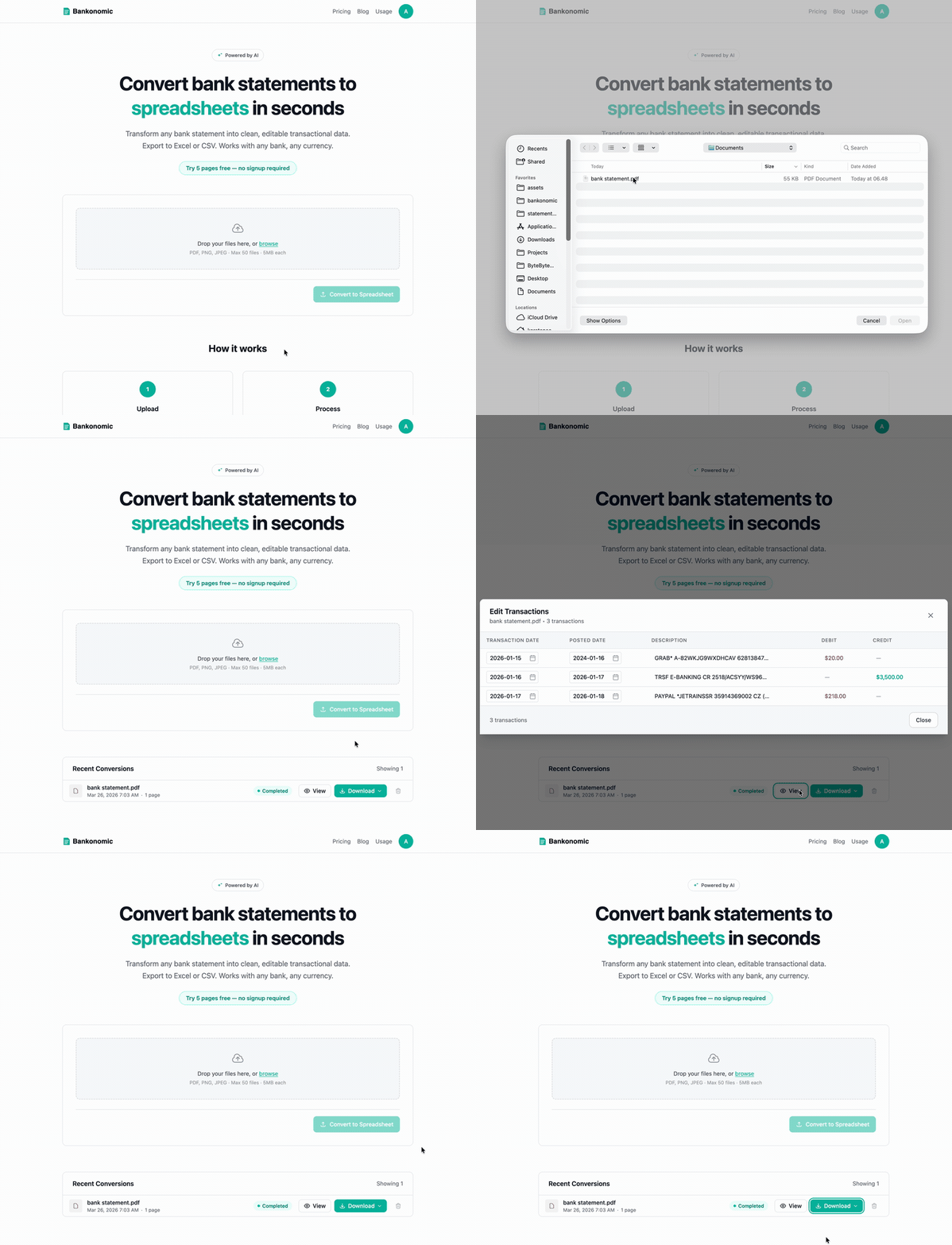
The free tier includes 10 pages per month. No signup required.
Accuracy matters when it comes to financial data. That is why we included a built-in editor that allows reviewing every transaction before exporting. Each transaction can be adjusted and corrected directly, ensuring the final output matches expectations.
Tips for Better Results
- Use original digital PDFs when possible. They have better text quality than screenshots or photos of printed statements.
- When scanning documents, higher resolution helps with accuracy.
- Multi-page PDFs do not need to be split. Most tools handle them as they are.
- Always check the output against the original statement. Look for missing transactions, wrong amounts, or date issues.
FAQ about Bankonomic
Is it safe to upload bank statements?
Bankonomic stores your files securely in the cloud using Google Cloud Platform. When you delete a conversion, the file is removed. All data is transferred over an encrypted connection.
What file formats does Bankonomic support?
PDF, PNG, and JPEG. This covers both digital bank statements and scanned or photographed ones.
Does it work with any bank?
Yes. Bankonomic reads the visual layout of the document, so it does not need separate setup for each bank.
How accurate is it?
It depends on the quality of the original document. Clean digital PDFs tend to produce very accurate results. Scanned or lower quality files may need some corrections, which can be made in the editor before exporting.
How much does it cost?
The free tier includes 10 pages per month with no signup required. Paid plans are available for higher volumes. See the pricing page for details.
What if there are errors?
Any transaction can be edited directly in the browser before exporting, including dates, amounts, and descriptions, ensuring the result meets expectations. For any issues, questions, or feature requests, reach out through our live chat or email [email protected]. We would love to hear from you.